Datasource
Datasource menu enables you to add the basic server information, where lookup object name and datasource name is defined. Based on this information, the lookup object details are mapped and extracted in the datatable. The datatable which is created in the Ontology page, is used to fetch the lookup object name that is linked to the derived field and the dynamic data. The parameters defined for Derived field are fetched from the details and query defined on the Lookup object page. Whereas, for List checkbox on Ontology page, the values are fetched from the Static list of Lookup object page.
Two types of datasources are created – Dynamic and Static. Dynamic data are automatically fetched as it is from the database, which is used for both derived and static list. Static list is used when there is a requirement to add data in the form of a fixed list. Static list are used only in MI page. User can create own data which is independent of any data field.
Following activities can be done while creating datasources.
This page enables you to add the datasource server information for the lookup object.
To add server details, follow these steps:
-
In the main menu, under Document Definition, click Manage Datasource. The Manage Datasource page opens.

-
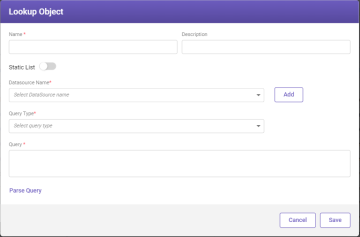
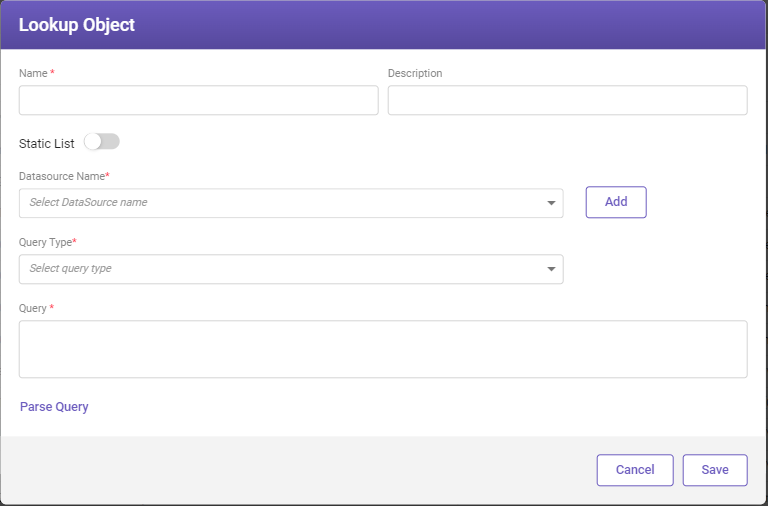
On the top-right corner of the page, click Add. The Lookup Object window opens.
-
Click Add. The Server Details window opens
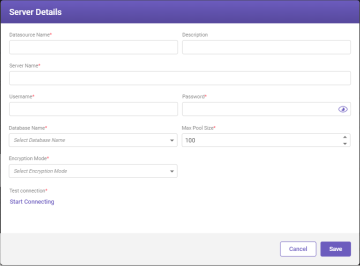

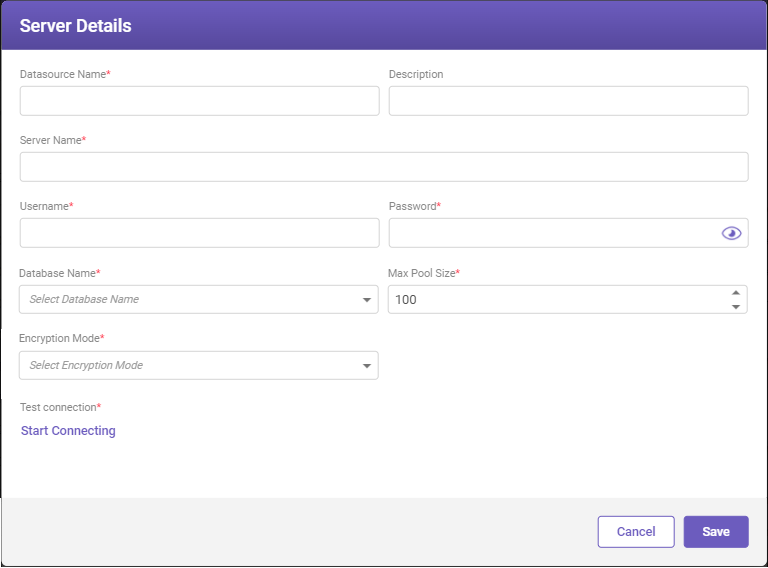
Fill-in the details based on the following field descriptions.
|
FIELD |
DESCRIPTION |
|---|---|
|
Datasource Name* |
Type the datasource name. |
|
Description* |
Type the description of the database name. |
|
Server Name* |
Type the server name. |
|
User Name* |
Type the user name. |
|
Password* |
Type the password. |
|
Database Name* |
Select the required database from the drop-down list. |
|
Max Pool Size* |
Type the pool size i.e., the number of times the connection can be reused. |
|
Encryption Mode* |
Select the type of encryption modes from the drop-down list. Available options are None, Column Encryption, and Transparent Data Encryption. |
|
Test connection* |
Click Start Connecting link, to connect to server and test the connection. In case, if the connection fails, you need to recheck the provided details and enter the correct details to connect it again. |
|
* Mandatory fields |
|
-
Click Save to save the details.
To edit the server details, follow these steps:
-
On the Manage Datasource page, select the required lookup object name and then click Edit. The Lookup Object window opens.
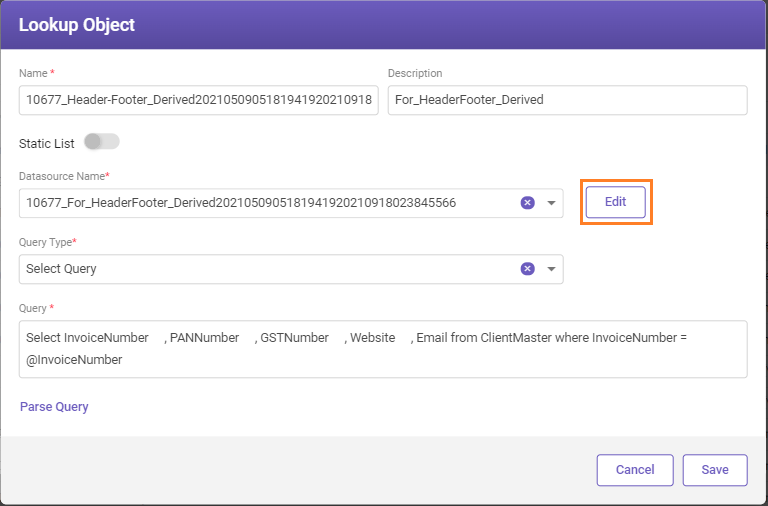
-
Click Edit. The Server Details window opens.
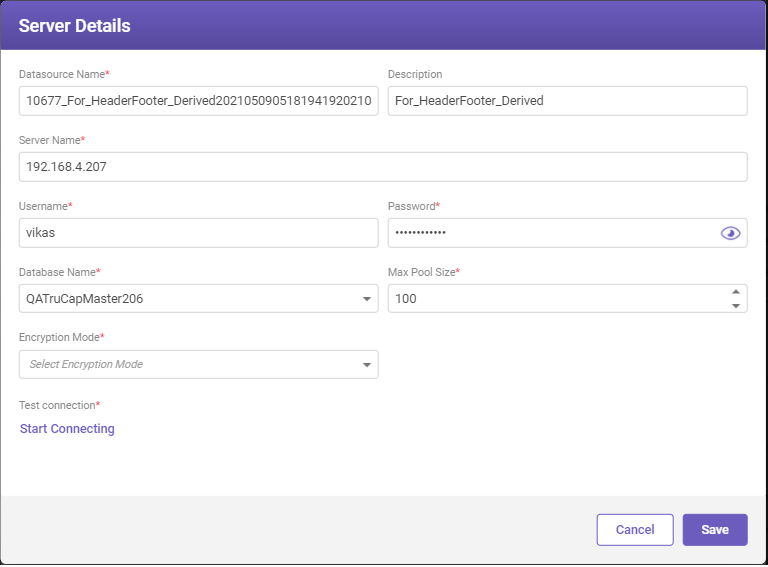
-
Modify the required details and then click Save
The lookup object page lets you add the lookup object details, which are mapped with the existing datasource. Users can add a query to fetch multiple parameter details against any dependent lookup object.
To add lookup object, follow these steps:
-
In the main menu, under Document Definition, click Manage Datasource. The Manage Datasource page opens.
-
On the top-right corner of the page, click Add. The Lookup Object window opens.
Fill-in the details based on the following field descriptions.
|
FIELD |
DESCRIPTION |
|---|---|
|
Name* |
Type the lookup object name. |
|
Description* |
Type the description of the lookup object name. |
|
Static List |
Toggle button for adding static list. |
|
Datasource Name* |
Select the required datasource name from the drop-down list. |
|
Query Type* |
Select the required query type. |
|
Query* |
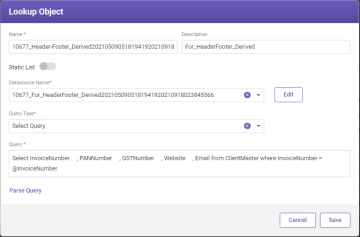
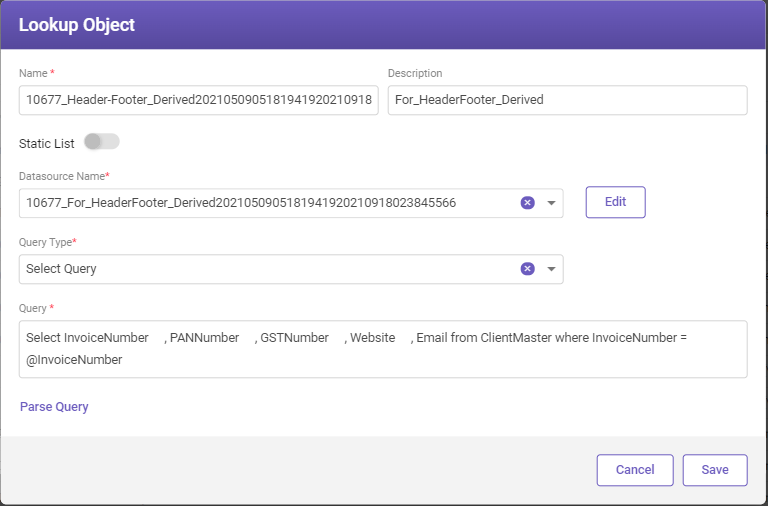
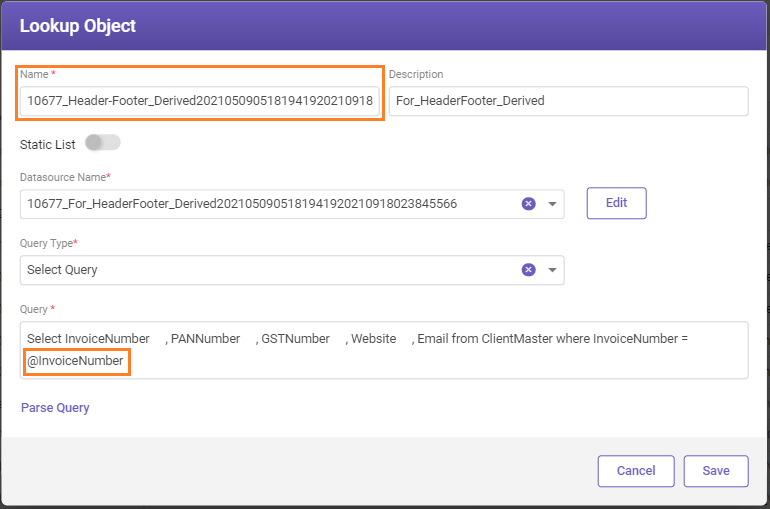
Type the SQL query for lookup object. For example, Select InvoiceNumber, PANNumber, GSTNumber, Website, Email from ClientMaster where InvoiceNumber = @InvoiceNumber |
3. Click Parse Query to test the connection.
4. Once you receive "Query parse successful" message, click Save.
To edit the lookup objects details, follow these steps:
-
On the Manage Datasource page, select the required lookup object name and then click Edit. The Lookup Object page opens.
-
Modify the required details and then click Save.
As shown in the above figure, the InvoiceNumber is a dependent field against which PANNumber, GSTNumber, Website, and Email values can be derived from the database. The fetched values are displayed on the MI page.
This page enables you to add static values and create a static list, which can be later used for the static field on the MI page. Once the static list is created, the values are fetched on MI page for the static field. For example, if a user wants to create a list for different branches of the office.
To add static list, follow these steps:
-
In the main menu, under Document Definition, click Manage Datasource. The Manage Datasource page opens.
-
On the top-right corner of the page, click Add. The Lookup Object window opens.
-
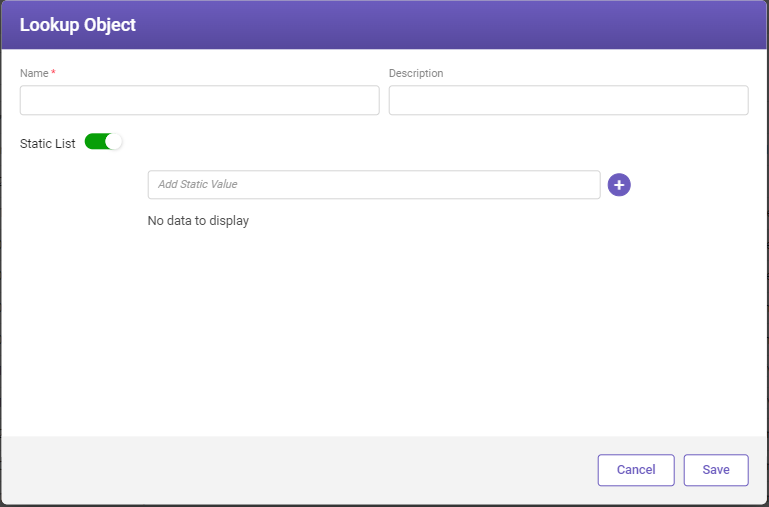
Turn on the Static List toggle switch. The Lookup Object window opens.
Fill-in the details based on the following field descriptions.
|
FIELD |
DESCRIPTION |
|---|---|
|
Name* |
Type the static lookup object name. |
|
Description* |
Type the description of the static lookup object name. |
|
Static List |
In the Add Static Value field, type the static value and click the
|
 icon, to add the values.
 icon against the value, which you want to delete.
 icon to move the entries up and down.
-
Click Save to save the details.
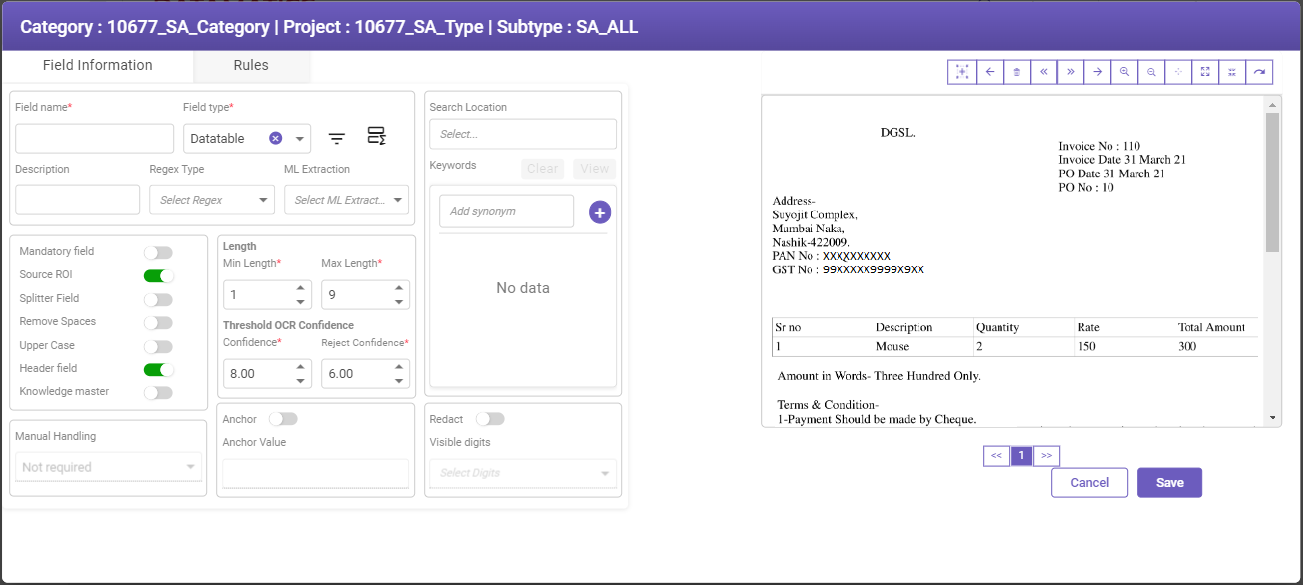
The Datatable page enables you to define datatables for the derived fields, which are fetched from the database. The values that are specified as a lookup object for fetching data are displayed as parameters. Multiple parameter values can be derived from any other dependent field.
To create datatable
-
Access the ontology page.
-
Type field name in the Field name* field.
-
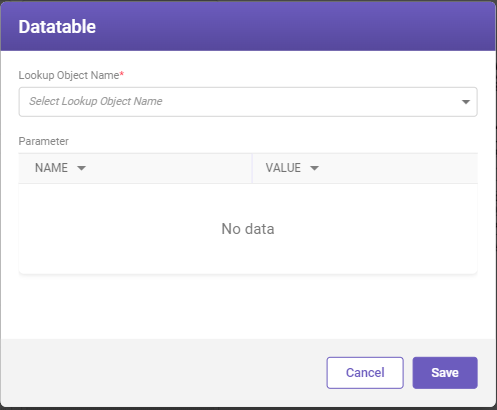
Select Datatable from the Field Type drop-down list, and then click the
 icon. The Datatable window opens.
-
Select the lookup object name from the Lookup Object Name* drop-down list.
-
Enter the value against the parameter name. The specified value has to be defined as a field in the ontology page, which has to be derived. Once the derived field is defined, select the appropriate extraction sequence. For example, @InvoiceNumber
As highlighted in the following image, the lookup object name and parameter name, which was created in the Datasource (Lookup Object page) are fetched on the Datatable page.
-
On the Datatable window, click Save.