Service Manager
The Service Manager Module is a crucial component within our product that provides valuable information about all the services running at the backend (server) to ensure the seamless functionality of TruCap+ features. This comprehensive documentation explains how to effectively utilize the Service Manager Module, similar to a dashboard, to monitor and control the execution of all services based on specific needs.
Key Features of the Service Manager Module
The Service Manager Module encompasses the following key features:
Service Status Information: The module displays real-time information about all services running at the backend (server).
Monitoring and Control: Users can use the module as a dashboard to monitor service execution and exercise control as needed.
Note:
To access the admin user interface, type "\admin" after the base url. Enter the admin related credentials to access the admin user interface.
Accessing Service Manager
To access the Service Manager page, follow these steps:
In the main menu, under Document Monitoring, click Service Manager. The Service Manager page opens.
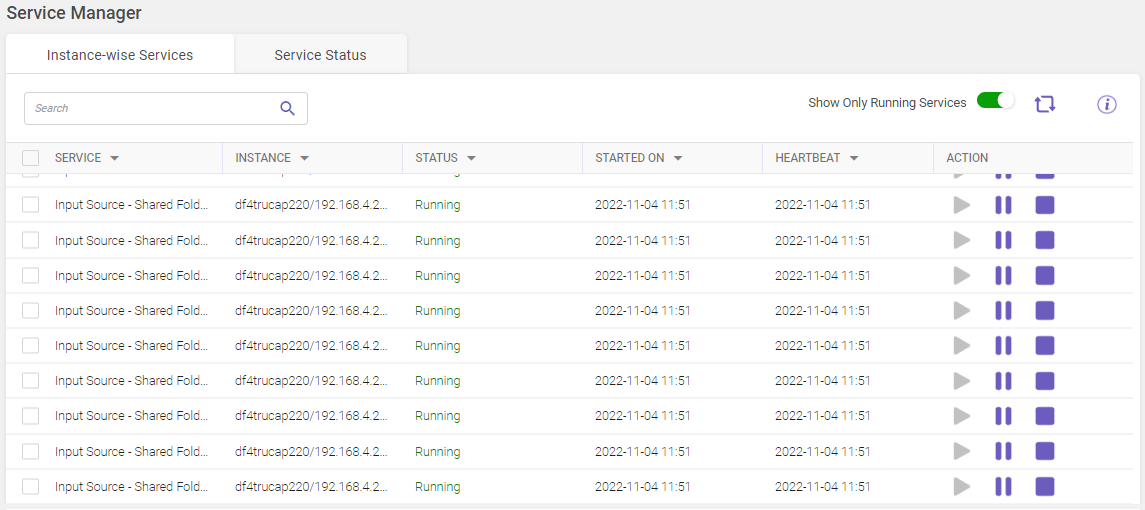
Following tabs are available on the Service Manager page:
-
Instance-wise Services
-
Service Status
Note:
If any of the services within TruCap+ service manager are currently running, the closure of Service manager is restricted. Refer to TruCap+ services for more details.
Click on the buttons inside the tabbed menu to know more.
The Instance-wise Services page displays detailed information about the services running on an instance-wise basis. You can start, pause, or stop the required service.
Following options are available on the Instance-wise Services page:
-
Search: Utilize the Search field to filter and find specific records within the displayed grid (Refer searching data).
-
Show only running services: Enable the toggle switch to view the list of currently running services.
-
Refresh: On the upper-right corner of the page, click the
 icon to refresh and view updated records.
-
Column descriptions: Click
 icon to view the column descriptions.
The following are the details of the activities that can be performed.
|
COLUMN NAME |
DESCRIPTION |
|---|---|
|
Service |
Displays the main services name. For example, Input Service, OCR Service, and so on. |
|
Instance |
Displays the instance name that gets generated automatically by the server. |
|
Status |
Displays the service status. The four different types of statuses are displayed:
|
|
Started On |
Displays the date and time on which service has started. |
|
Displays the last date and time at which the service had run. The date and time displayed should be consistent with the current time. Any discrepancy in time indicates the service is not running accurately which needs immediate correction. |
|
|
Action |
The following action buttons enable you to operate the service:
|
 to start the service if it is not running.
 to temporarily pause the execution of the service.
 to stop the execution of the service.
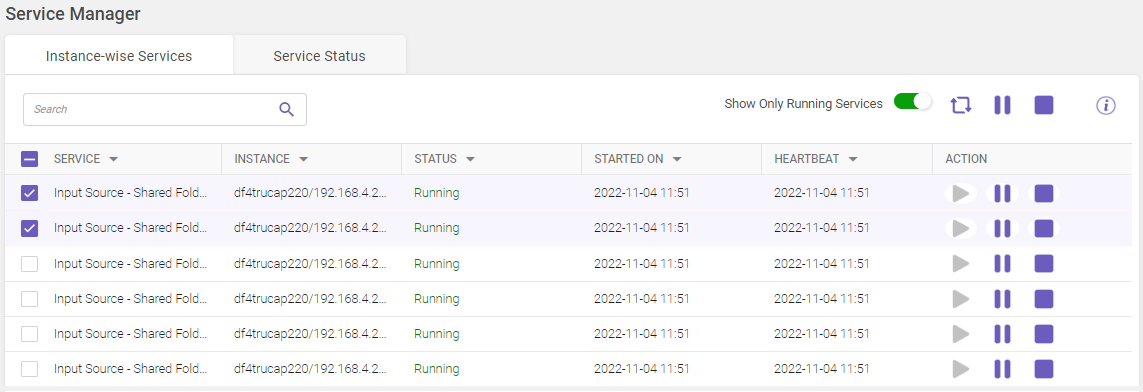
If multiple records are selected, an additional set of Pause and Stop buttons is displayed at the top right corner of the service manager page. Click on the respective button either to pause or stop the execution of the selected services.
The service status page displays the currently running services. Utilize the Search field to filter and find specific records within the displayed grid (Refer searching data).
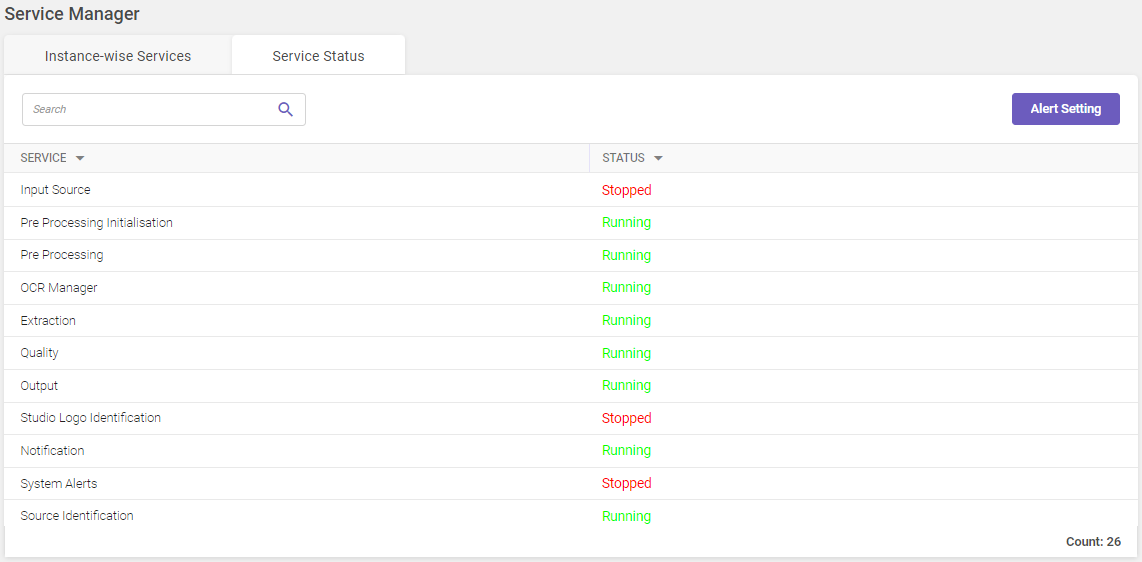
Column header descriptions
|
COLUMN NAME |
DESCRIPTION |
|---|---|
|
Service |
Displays the main services name. |
|
Status |
Displays the current status of the service. |
To set alerts, follow these steps:
-
Navigate to the Service Status tab within the Service Manager page. In the top-right corner of the page, click the Alert Setting button. The Alert Setting window opens
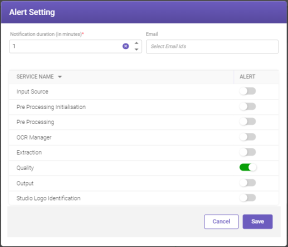
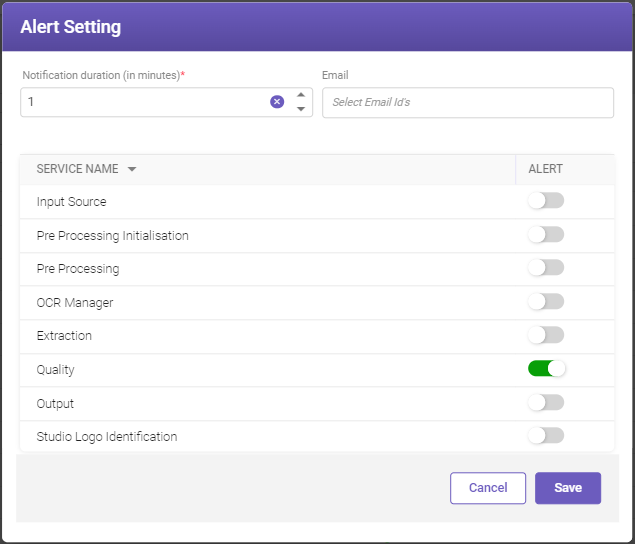
Fill-in the details based on the following field descriptions.
|
FIELD |
DESCRIPTION |
|---|---|
|
Notification duration (in minutes)* |
Enter the desired time interval in minutes for receiving notification alerts. |
|
|
Specify the email addresses of the users who should receive the notification alerts. |
|
Service name |
Displays the list of available services. |
|
Alert |
Turn on/off the toggle switch to enable/disable the services for which an alert is to be received. |
|
* Mandatory fields |
|
-
Click Save to save the details.