AI Engine Configuration
The OpenAI Configuration feature in TruCap+ enables users to integrate OpenAI as an extraction engine for processing documents. This powerful capability allows you to leverage OpenAI's advanced natural language processing capabilities to extract and analyze data from various types of documents. This documentation provides a step-by-step guide on how to configure OpenAI to enhance document processing capabilities in TruCap+.
Note:
TruCap+ only supports Azure OpenAI.
Accessing AI Engine Configuration
To access the AI Engine Configuration page, follow these steps:
-
In the main menu, under Application Setup, click AI Engine Configuration. The AI Engine Configuration page opens.

Column header descriptions
COLUMN NAME
DESCRIPTION
AI Engine
Displays the AI engine name.
Action
Link to configure the AI engine.
-
Under Action column, click Configure link associated with the desired AI engine. The AI Engine name: OpenAI window opens.


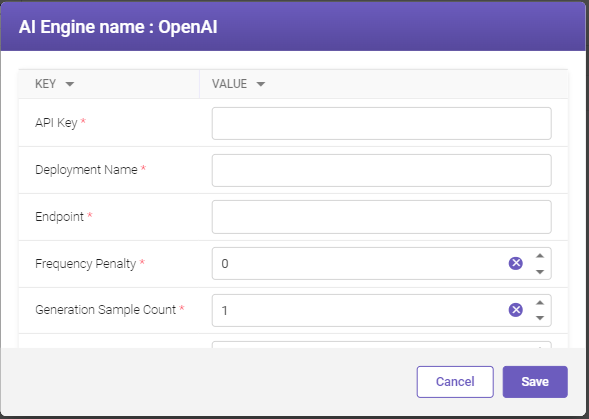
Provide values for the displayed parameters based on the descriptions given in the below table. (For detailed description, refer Azure OpenAI documentation.)
|
PARAMETER |
DESCRIPTION |
|---|---|
|
API Key* |
Enter the Azure API service key for establishing connection. |
|
Deployment Name* |
Enter the model deployment name of Azure Open AI model. Note Ensure that the Deployment Name specified during deployment matches the exact name registered at Azure OpenAI. This specific name is crucial for seamless integration, as any deviation will result in a 404 error when making API calls. |
|
Endpoint* |
Enter the Azure API service endpoint URL. |
|
Frequency Penalty* |
Frequency penalty controls the repetition of same tokens in the generated response. Higher penalty reduces token repetition. Enter the frequency penalty. |
|
Generation Sample Count* |
Determine the number of completions generated before forming a response. Enter the generation sample count. |
|
Max Tokens* |
Set the maximum number of tokens in a single request. |
|
Nucleus Sampling Factor* |
Provide an alternative to temperature for token selection. Enter the nucleus sampling factor. |
|
Presence Penalty* |
Reduce the probability of repeating words in predicted text. Enter the presence penalty. |
|
Temperature* |
Control output randomness; lower values favor high-probability words. Enter the temperature. |
|
*Mandatory field |
|
-
Click Save to save the details.
Extracting data on MI screen
Note:
To extract data using the configured AI engine, select the required AI engine while creating a subtype. Refer Subtype details tab in Adding subtype for more details.
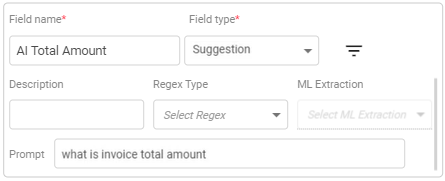
Once an AI engine is selected for a subtype, a new Prompt text field is visible, and a new Suggestion field type is available when you set up ontology. For more details, refer to Setting up ontology.
Prompt text field
Once an AI engine is selected for a subtype, a new Prompt text field is visible (see below image). Enter specific text prompts (e.g., "Total amount") for AI data extraction. This text field is available for all the field types.
Note: You need to scroll down to see the Prompt field.

Suggestion field type
In addition a new Suggestion field type (see below image) is available when setting up ontology. For more details, refer to Setting up ontology. This field type allows you to input a statement prompt (e.g., "What is invoice total amount") for AI-driven data extraction.
Ways to extract data
Depending on your selection, two methods are available for data extraction using AI engines during MI & QC:

-
For Suggestion field type: Enter a question prompt, and the extracted data will be in answer format (See the image above).
If you want to change the prompt for the suggestion field, click on the
 icon next to the suggestion field (this icon is only visible if the Suggestion field type is selected). A field name prompt window opens (see the image below). Change the prompt and click Extract to extract the data.

-
For other field types: Use the Extract Value
 icon on the quick access toolbar to extract data with entered prompts.

Note:
-
The Suggestion field type provides flexibility to change the prompt directly on the MI/QC screen.
-
You cannot extract data using the Extract Value
icon for the Suggestion field type.