Application settings
This section provides comprehensive information about the array of available application settings within TruCap+. These settings grant users the flexibility to tailor the data extraction process to align with specific requirements. This documentation outlines the significance of these settings and how to access them through the TruCap+ interface.
These settings encompass a variety of parameters that influence how data is processed, captured, and managed within the application. These settings can be accessed from the main menu under the Setup Application > Application Settings option.
Note:
To access the admin user interface, type "\admin" after the base url. Enter the admin related credentials to access the admin user interface.
Application-level settings
 Application
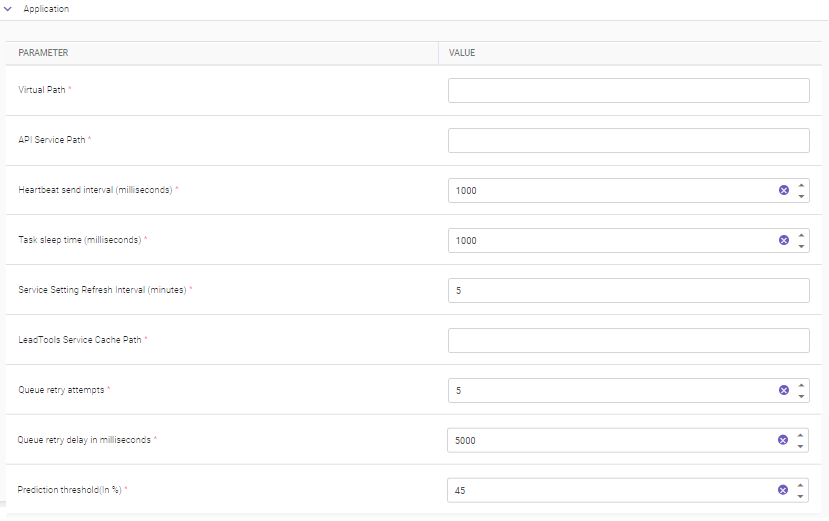
The application settings enable configuring enqueue and re-enqueue message services to ensure reliable and efficient message processing within TruCap+. These settings collectively enhance the reliability and effectiveness of message processing in the application.
|
PARAMETER |
DESCRIPTION |
|---|---|
|
Virtual Path* |
Specify the virtual path of the TruCap+ application. This setting helps define the web application's root directory, enabling correct routing and navigation. |
|
API Service Path* |
Specify the Application Programming Interface (API) service path, indicating the location where API requests are processed and data is exchanged between TruCap+ and external systems. |
|
Heartbeat send interval (milliseconds)* |
Specify the interval, in milliseconds, between successive heartbeat signals sent by a running service. Heartbeat signals are essential for monitoring the availability and responsiveness of services. |
|
Task sleep time (milliseconds)* |
Specify the amount of time, in milliseconds, a process sleeps after completing a task before proceeding to the next task. This setting aids in managing the pace of task execution and resource allocation. |
|
Specify how often the application should refresh its service settings. This parameter ensures that any changes in service configurations are promptly updated and applied. |
|
|
LeadTools Service Cache Path* |
Specify the location where the LeadTools service cache is stored. This cache assists in optimizing image processing and retrieval. |
|
Queue retry attempts* |
Specify the maximum number of retry attempts the application should make when communicating with a queue server. If the server becomes unresponsive, the system will attempt to reconnect according to this parameter. |
|
Queue retry delay in milliseconds* |
Specify the time interval between each retry attempt to reconnect with a queue server. This interval ensures a controlled approach to reestablishing communication. |
|
Prediction threshold (in %)* |
Specify the percentage above which a data point is considered to be in the positive class or for prediction purposes. This setting is vital for determining classification and prediction outcomes. |
|
* Mandatory fields |
|
Archive and purge
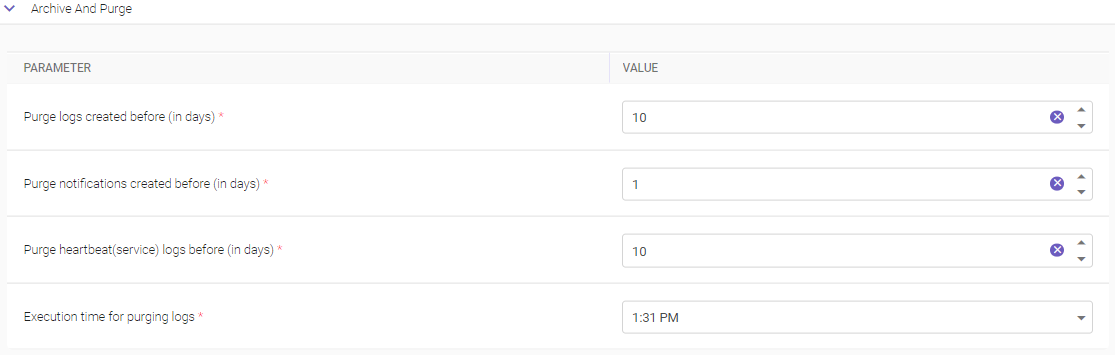
The Archive and Purge Settings within TruCap+ offer administrators an effective way to manage and maintain the storage of archived files and logs. By configuring these parameters, administrators can ensure that older archived data is automatically deleted, optimizing storage space and promoting system efficiency.
Note
In case of multi-tenancy environment, system logs generated over a course of time, will come under the purview of SaaS admin and cannot be accessed or deleted by a tenant.
|
PARAMETER |
DESCRIPTION |
|---|---|
|
Purge logs created before (in days)* |
Specify a time span, in days, for the automatic deletion of older archived logs. Logs that were created before this specified time limit will be purged, ensuring that only recent and relevant logs are retained for reference. |
|
Purge notifications created before (in days)* |
Specify a time span, in days, for the removal of older archived notifications. This ensures that outdated notifications are purged, maintaining the relevance of archived data. |
|
Purge heartbeat (service) logs before (in days)* |
Specify a time span, in days, for the deletion of older archived service logs related to heartbeat activity. This ensures that service-related logs are regularly maintained and that historical data remains relevant. |
|
Execution time for purging logs* |
Specify the time of day when the automated purging of logs will be executed. Administrators can set a specific time for this process to occur regularly, ensuring that older data is purged according to the specified time spans. |
|
* Mandatory field |
|
Correction
The Correction Settings in TruCap+ empower users with the option to utilize the Auto spell correction feature, enhancing the accuracy and quality of data extraction and document processing.

|
PARAMETER |
DESCRIPTION |
|---|---|
|
Enable Autocorrection* |
When the toggle button is turned on, the autocorrect option becomes active. With autocorrection enabled, TruCap+ will automatically detect and correct spelling errors in extracted data, contributing to improved data accuracy and reliability. If the toggle button is turned off, the autocorrect option is disabled, and TruCap+ will not automatically correct spelling errors. |
Document monitor
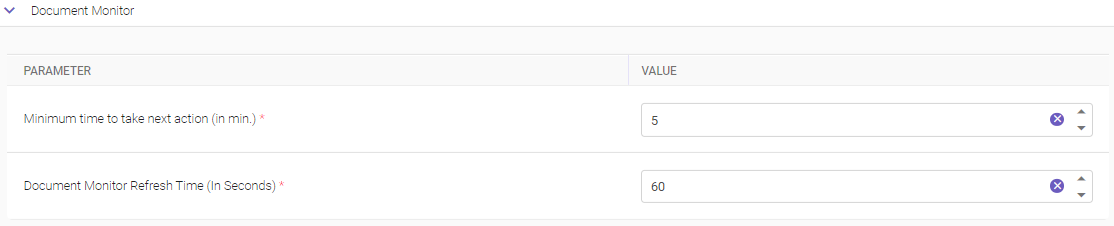
The Document Monitor Settings in TruCap+ offer users the capability to regulate the availability of documents assigned to specific users for a designated minimum duration, enabling users to take the necessary actions efficiently.
|
PARAMETER |
DESCRIPTION |
|---|---|
|
Minimum time to take next action (in min.)* |
Specify the minimum duration, measured in minutes, within which a document assigned to a user is to remain blocked. During this period, the user is expected to complete the necessary actions related to the document, ensuring timely processing and preventing potential conflicts with other users. |
|
Document Monitor Refresh Time (in seconds)* |
Specify the refresh interval duration for the Document Monitor page. Users can enter the desired duration in seconds or use the provided icon to conveniently set the duration. This refresh time determines how frequently the Document Monitor page updates to display the latest document statuses, ensuring users have up-to-date information. |
|
* Mandatory field |
|
Document path
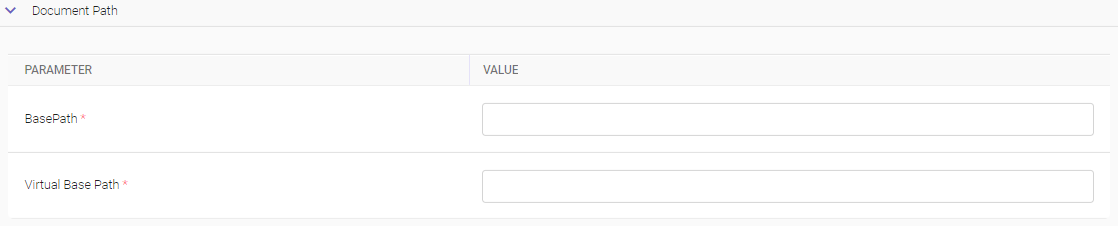
The Document Path Settings in TruCap+ provide users with the capability to specify the paths for storing processed documents on a hosted server, facilitating efficient management of processed data.
|
PARAMETER |
DESCRIPTION |
|---|---|
|
Specify the base path, which indicates the root directory on the hosted server where the processed documents will be stored. This path serves as the foundation directory for all processed documents. |
|
|
Virtual Base Path* |
Specify the virtual directory path corresponding to the base path. This virtual path aids in creating a user-friendly way to access the stored documents, enhancing ease of navigation and retrieval. |
|
* Mandatory fields |
|
Encryption
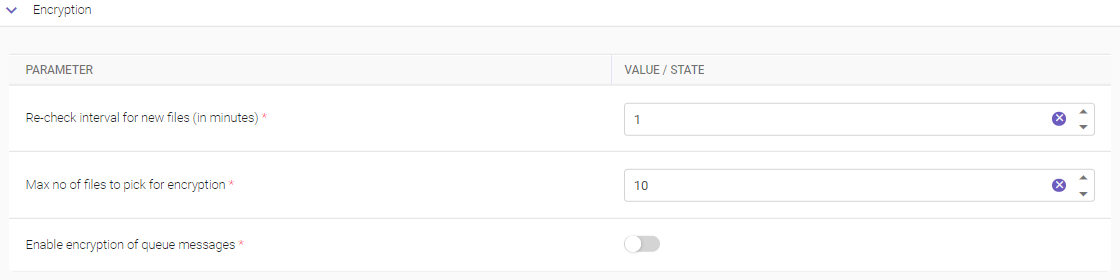
The Encryption Settings in TruCap+ offer users the capability to configure encryption-related parameters, ensuring secure data handling within the application's queue. These settings encompass options for managing file encryption and queue message encryption.
|
PARAMETER |
DESCRIPTION |
|---|---|
|
Re-check interval for new files (in minutes)* |
Specify the time interval at which the system will automatically check for newly arrived files in the queue, waiting to be encrypted. Users can input the desired time duration in minutes, or use the provided icons to increment or decrement the value. |
|
Max no. of files to pick for encryption* |
Specify the maximum number of files that the system is allowed to select for encryption. By setting this limit, users can control the quantity of files processed for encryption at any given time. The numeric value can be directly entered or adjusted using the provided icons. |
|
Enable encryption of queue messages* |
Enabling this toggle button initiates the encryption of messages that have entered the queue. When activated, messages within the queue will be encrypted to enhance data security during transit and processing. |
|
* Mandatory fields |
|
Execution
The Execution Settings in TruCap+ offer users the ability to control the retention or deletion of .CSV files generated during the data capture process. This setting plays a crucial role in managing file storage and optimizing the application's performance.

|
PARAMETER |
DESCRIPTION |
|---|---|
|
Retain csv (word/phrase) files* |
When the toggle button is enabled, the application is instructed not to delete the .CSV files that are intermittently created as a part of the data capture process. Any .CSV files generated during the data capture process are retained in the storage environment, even after the data capture process is completed. When toggle button is disabled, the application is configured to delete .CSV files that are created during the data capture process once the data capture process reaches its completion. The application automatically removes the .CSV files that were generated as part of the data capture process, ensuring the storage environment is kept clutter-free. |
External Models
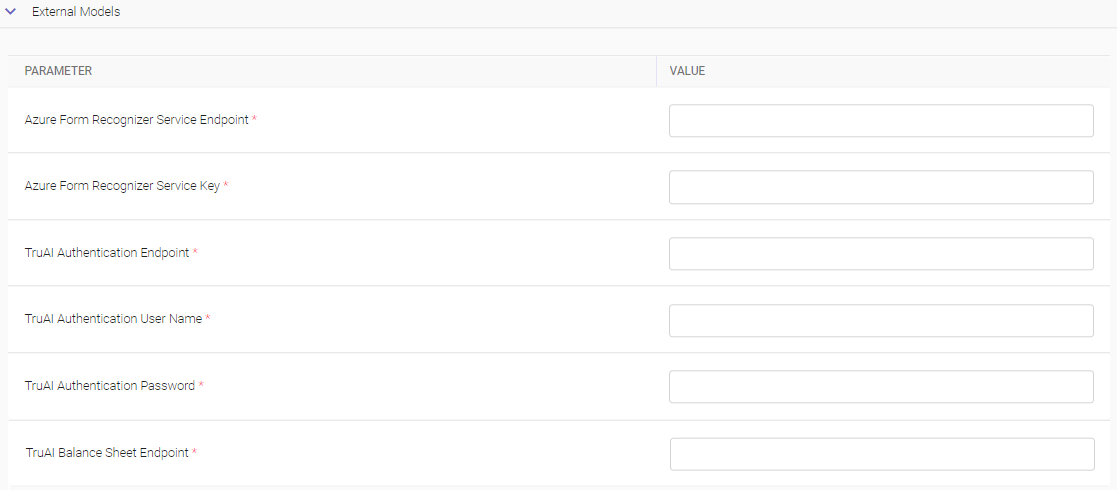
The External Models Settings in TruCap+ pertain to the configuration and integration of Machine Learning (ML) extraction using external models. These settings facilitate the interaction between TruCap+ and external services, enabling the utilization of advanced ML techniques for data extraction.
|
PARAMETER |
DESCRIPTION |
|---|---|
|
Azure form recognizer service endpoint* |
Specify the URL of the Azure Form Recognizer service endpoint. The endpoint serves as the connection point between TruCap+ and the Azure Form Recognizer service, enabling the extraction of structured data from various types of documents. |
|
Azure form recognizer service key* |
Specify the service key that is essential for authentication and secure communication between TruCap+ and the Azure service. It acts as a unique identifier for accessing the service and enabling ML-based data extraction. |
|
TruAI Authentication Endpoint* |
Specify the TruAI authentication endpoint URL. |
|
TruAI Authentication Username* |
Specify the TruAI authentication username. |
|
TruAI Authentication Password* |
Specify the TruAI authentication password. |
|
TruAI Balance Sheet Endpoint* |
Specify an endpoint URL that provides a balance sheet summary. The TruAI Balance Sheet Endpoint is potentially used to retrieve relevant financial data or insights for further processing and analysis. |
|
* Mandatory fields |
|
Extraction
The Execution Settings in TruCap+ offer users to determine whether files containing words or phrases generated during the data extraction process are stored in the database..

|
PARAMETER |
DESCRIPTION |
|---|---|
|
Save Words/Phrases files in Database* |
When enabled, TruCap+ application saves files containing words or phrases extracted during the data capture process into the database. These files likely consist of keywords, phrases, or extracted data elements relevant to the documents being processed. |
Lead tool
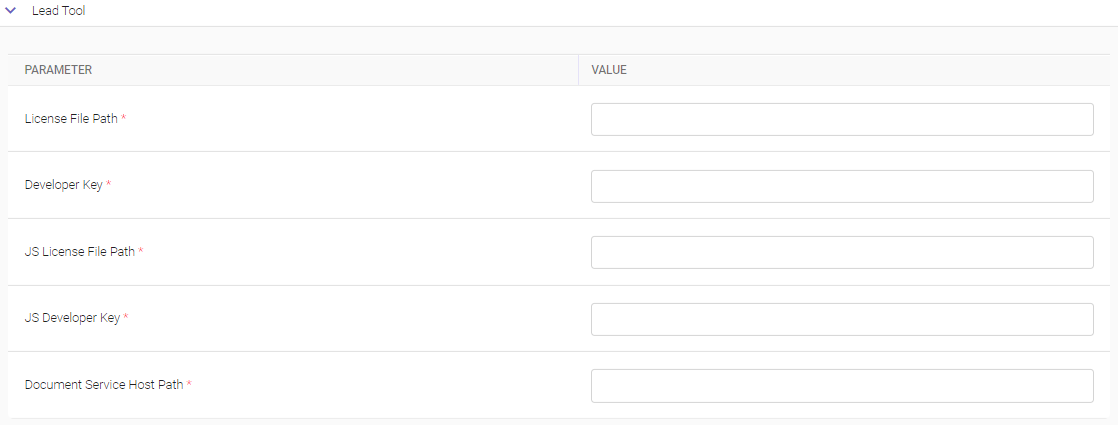
The Lead Tool Settings encompass a set of parameters within TruCap+ that allow users to configure and manage various aspects related to the integration and functioning of Lead Tools, a software development toolkit used for incorporating imaging, OCR, barcode, and document conversion technologies.
|
PARAMETER |
DESCRIPTION |
|---|---|
|
License File Path* |
Specify the file path to the license file associated with Lead Tools. The license file is essential for the legal and authorized use of Lead Tools within the application. |
|
Developer Key* |
Specify the developer key associated with Lead Tools. The developer key is used for authentication purposes and validates the application's access to Lead Tools functionalities. |
|
JS License File Path* |
Specify the file path to the JavaScript (JS) license file for Lead Tools. This file is necessary for enabling JavaScript-related functionalities of Lead Tools. |
|
JS Developer Key* |
Specify the JS developer key that corresponds to the JS license file. It facilitates secure access to JavaScript-related features. |
|
Document Service Host Path* |
Specify the host path for the document service associated with Lead Tools. The document service host path is a crucial element in establishing connectivity and communication with the Lead Tools document-related services. |
|
* Mandatory fields |
|
Logger
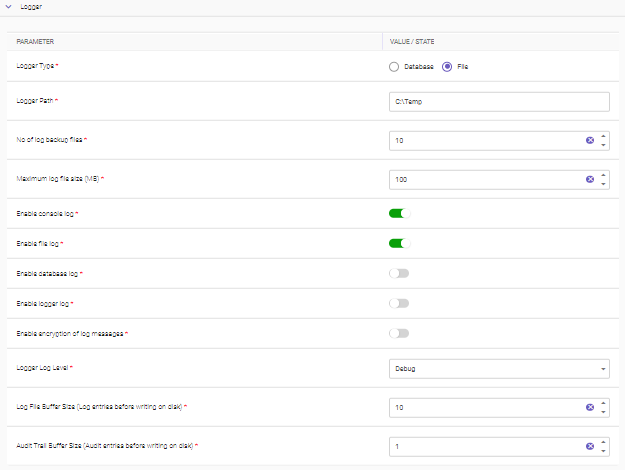
The Logger Settings section within TruCap+ enables users to configure various aspects of logging behavior, allowing them to control how logs are generated, stored, and managed during the document processing workflow.
|
PARAMETER |
DESCRIPTION |
|---|---|
|
Logger Type* |
Select the type of logger that will be used for generating logs. Users can choose between two options:
|
|
Logger Path* |
Specify the path where the generated log files will be stored. |
|
No of log backup files* |
Specify the number of backup files that should be maintained once the log file size reaches the defined limit. |
|
Maximum log file size (MB)* |
Specify the maximum allowable size for a log file before a new log file is generated. |
|
Enable console log* |
Enabling this option generates log files that are displayed on the console. |
|
Enable file log* |
Enabling this option generates log files in a file-based format. |
|
Enable database log* |
Enabling this option generates log files in a database. |
|
Enable logger log* |
When enabled, this option logs internal logger-related exceptions in the system. |
|
Enabling this option causes logs to be saved in an encrypted format for added security. |
|
|
Logger Log Level* |
Users can choose between two options for the level at which internal logger-related exceptions are set:
|
|
Log File Buffer Size (Log entries before writing on disk)* |
Specify the number of log entries that are buffered before they are written to the disk. |
|
Audit Trail Buffer Size (Audit entries before writing on disk)* |
Specify the number of audit trail entries that are buffered before they are written to the disk. |
|
* Mandatory fields |
|
ML model training
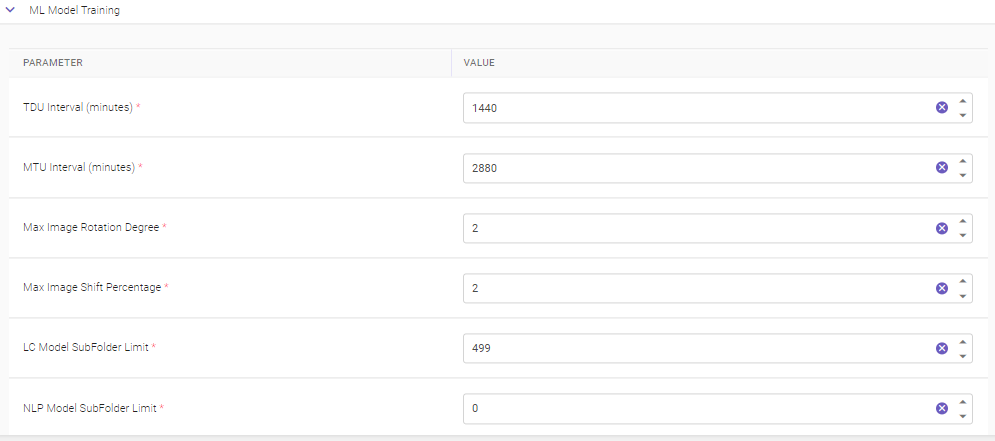
The ML Model Training Settings within TruCap+ empowers users to configure aspects related to the Machine Learning (ML) model training process. This includes defining intervals for executing the Training Data Utility (TDU) and the Model Trainer Utility (MTU) services, both of which contribute to training and optimizing ML models. The TDU focuses on training data preparation for Logo Classification (LC) and Natural Language Processing (NLP) models.
|
PARAMETER |
DESCRIPTION |
|---|---|
|
TDU Interval (minutes)* |
This parameter enables users to set the time interval at which the Training Data Utility (TDU) service should be scheduled to run. The TDU service handles training data preparation for LC and NLP models. The interval is specified in minutes. |
|
MTU Interval (minutes)* |
This parameter allows users to set the time interval at which the Model Trainer Utility (MTU) service is scheduled to run. The MTU service focuses on model training optimization. The interval is specified in minutes. |
|
Max Image Rotation Degree* |
Specify the maximum degree of image rotation for augmenting training data. The ML model training process may involve training on images at multiple rotation angles to enhance model robustness. |
|
Max Image Shift Percentage* |
Specify the maximum percentage by which images can be shifted either to the left or right. Image shifting can contribute to generating diverse training samples for the ML model. |
|
LC Model SubFolder Limit* |
Specifies the maximum number of records that a Logo Classification (LC) model sub-folder should contain. This helps in managing the size and organization of training data. |
|
NLP Model SubFolder Limit* |
Specifies the maximum records within a sub-folder for the Natural Language Processing (NLP) model. This ensures effective training data management. |
|
* Mandatory fields |
|
ML service manager
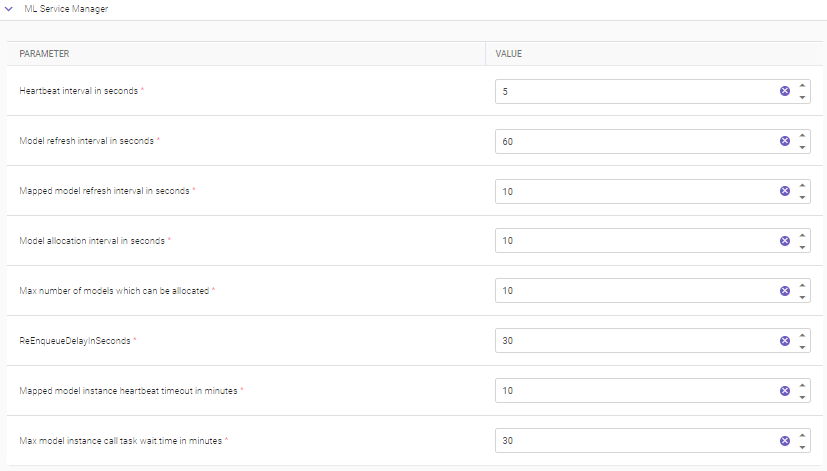
The ML Service Manager Settings within TruCap+ empower users to configure various aspects related to the management and performance of Machine Learning (ML) services. These settings play a crucial role in governing the behavior and efficiency of ML-related operations.
|
PARAMETER |
DESCRIPTION |
|---|---|
|
Heartbeat interval in seconds* |
Heartbeat interval indicates the time interval, measured in seconds, between consecutive heartbeat counts for a running ML service. Heartbeats indicate the status and responsiveness of the service. |
|
Model refresh interval in seconds* |
Specifies the interval, measured in seconds, after which the ML model undergoes a refresh. Model refreshes are important for updating and adapting the model based on new data and insights. |
|
Mapped model refresh interval in seconds* |
Specifies the interval, in seconds, for refreshing mapped ML models. Mapped models are associated with specific projects or contexts. |
|
Model allocation interval in seconds* |
Specifies the time interval, measured in seconds, for allocating ML models to a project. This interval defines how often the allocation process occurs. |
|
Max number of models which can be allocated* |
Specifies the maximum number of ML models that can be allocated to a single project. This setting helps in optimizing resource allocation. |
|
ReEnqueue delay in seconds* |
Specifies the time, in seconds, before a previously allocated ML model becomes available for allocation again. It essentially sets a waiting period before reuse. |
|
Mapped model instance heartbeat timeout in minutes* |
Specifies the duration, in minutes, after which a heartbeat from a mapped ML model instance will time out. Heartbeats indicate the operational status of the model instance. |
|
Max model instance call task wait time in minutes* |
Specifies the maximum amount of time, in minutes, that a call task will wait for an available model instance. |
|
*Mandatory fields |
|
ML services
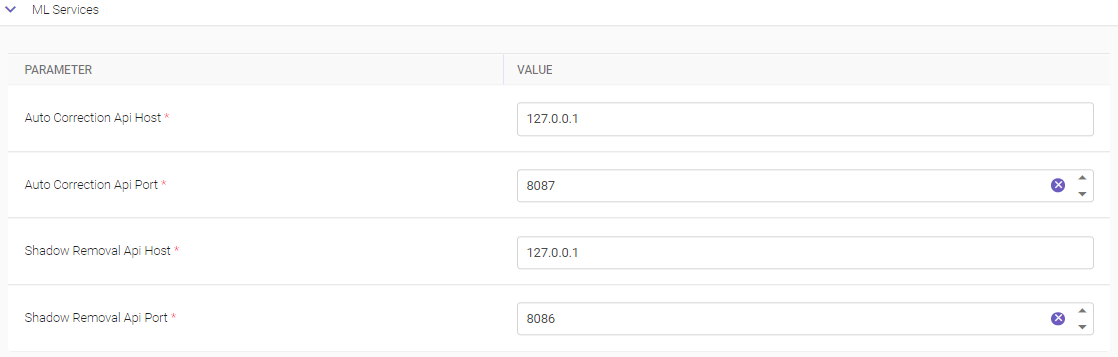
The ML Services Setting in TruCap+ empowers users to configure and manage the host IP addresses and ports for two crucial services: Auto Correction and Shadow Removal. These services are integral components of the Machine Learning (ML) infrastructure that enhance data extraction accuracy and quality.
|
PARAMETER |
DESCRIPTION |
|---|---|
|
Auto correction Api Host* |
Specifies the IP address of the server where the Auto Correction service is running. It establishes the connection to the server hosting the Auto Correction functionality. |
|
Auto correction Api Port* |
Specifies the port number associated with the Auto Correction service on the server. The port acts as an entry point for communication with the Auto Correction functionality. |
|
Shadow removal Api Host* |
Specifies the IP address of the server hosting the Shadow Removal service. It facilitates communication and data exchange with the Shadow Removal module. |
|
Shadow removal Api Port* |
Specifies the port number used to connect to the Shadow Removal service on the specified server. The port enables communication between TruCap+ and the Shadow Removal functionality. |
|
*Mandatory fields |
|
Notification
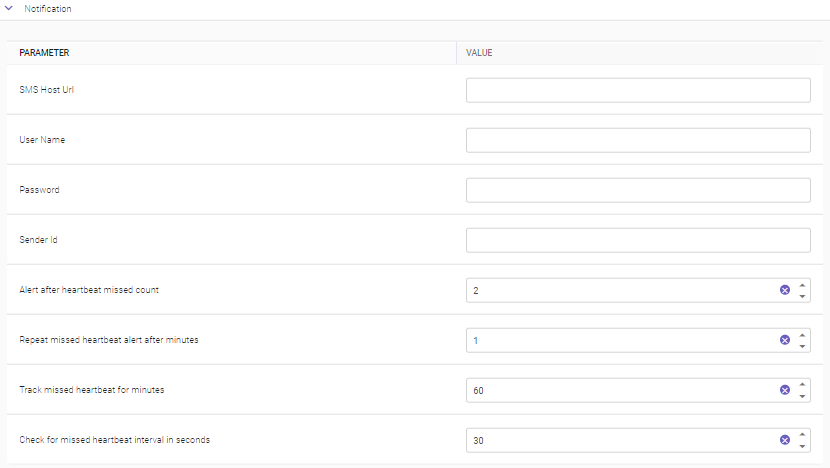
The Notification Settings within TruCap+ offer users the ability to configure parameters essential for SMS notifications. This feature enables users to receive important alerts and updates via SMS, enhancing communication and facilitating prompt responses. The fields provided must be accurately specified as instructed by the SMS provider.
|
PARAMETER |
DESCRIPTION |
|---|---|
|
SMS Host Url |
Specify the URL of the SMS engine used for hosting SMS services. It serves as the entry point for sending SMS notifications. |
|
User Name |
Specifies the user name associated with the SMS service. It identifies the user account responsible for sending SMS notifications. |
|
Password |
Specify the password linked to the user account specified. The password authenticates the user account for sending SMS messages. |
|
Sender Id |
Specifies the sender ID that appears on the recipient's mobile device when receiving the SMS notification. It serves as an identifier for the sender. |
|
Alert after heartbeat missed count |
Specifies the count of missed heartbeat after which an alert is triggered. Heartbeats serve as a mechanism to monitor system health, and this parameter determines the threshold for receiving alerts. |
|
Repeat missed heartbeat alert after minutes |
Specifies the interval in minutes at which a repeat alert message is sent for missed heartbeats. This parameter ensures continuous notification until the issue is addressed. |
|
Track missed heartbeat for minutes |
Sets the duration in minutes during which missed heartbeats are tracked. This parameter establishes the time window for monitoring system health. |
|
Check for missed heartbeat interval in seconds |
Specifies the time interval in seconds for checking missed heartbeats. It defines how frequently the system evaluates the occurrence of missed heartbeats. |
OCR settings
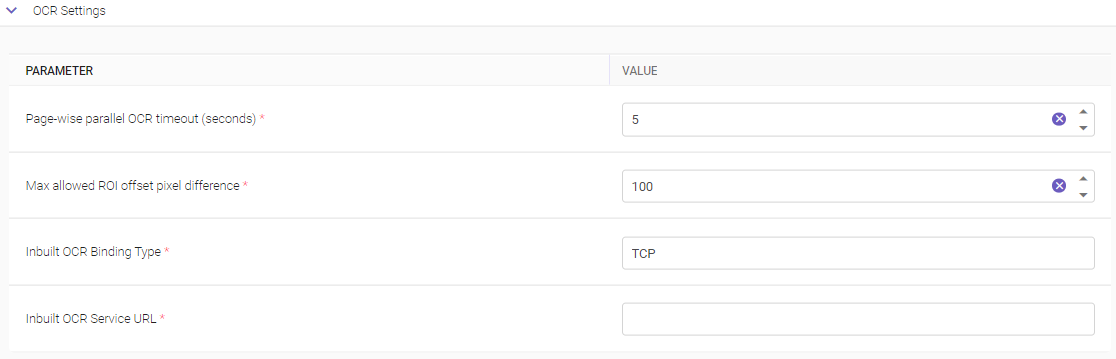
The OCR Settings within TruCap+ provide users with the ability to configure various parameters that are critical for the functioning of the Optical Character Recognition (OCR) engine. OCR technology plays a pivotal role in accurately extracting text and data from images and documents, enhancing data capture and processing capabilities.
|
PARAMETER |
DESCRIPTION |
|---|---|
|
Page-wise parallel OCR timeout (seconds)* |
Specify the time in seconds for which the OCR manager will wait for the response from all the configured OCR engines. If a response is not received within this time, then the OCR manager returns with whatever results it already has. |
|
Max allowed ROI offset pixel difference* |
Specifies the maximum allowable pixel difference between zones when calculating offsets. The offset calculation determines the spatial relationship between different zones on a page. |
|
Inbuilt OCR Binding Type* |
Specifies the binding type to establish a connection with the Inbuilt OCR Service. This parameter specifies whether the connection should be established using HTTP or HTTPS protocols. |
|
Inbuilt OCR Service URL* |
Specify the service URL to connect with the Inbuilt OCR Service. The URL serves as the address for interacting with the OCR service. |
|
* Mandatory field |
|
Ontology Copilot API
The "Ontology Copilot API Endpoint" setting in TruCap+ is a configuration option that allows administrators to specify the endpoint or URL where the Ontology Copilot API is hosted.

|
PARAMETER |
DESCRIPTION |
|---|---|
|
Ontology Copilot API Endpoint* |
Specify the ontology copilot API authentication endpoint URL. |
|
* Mandatory field |
|
Preprocessing
The Preprocessing Settings within the TruCap+ application empowers users to configure various aspects of the preprocessing stage of document processing. This section includes settings related to the execution library type selection, bypassing the preprocessing stage, and inbuilt OCR settings. These parameters allow users to customize the preprocessing behavior according to their preferences and requirements.

|
PARAMETER |
DESCRIPTION |
|---|---|
|
Execution Library Type* |
Choose the execution library type that will be utilized for processing documents during the preprocessing stage. Users can select the desired library type from a provided dropdown list of options. The selected library type will determine the tool used for executing preprocessing tasks on documents. |
|
* Mandatory field |
|
Productivity data generation frequency
The Productivity Data Generation Frequency Setting within the TruCap+ application empowers users to define the frequency at which updates on user productivity are generated. This setting governs the rate at which details regarding the number of processed documents and the time taken at each processing stage are updated and presented to users. The frequency of these updates is specified in minutes.

|
PARAMETER |
DESCRIPTION |
|---|---|
|
Productivity Data Generation Frequency (Minutes)* |
Specify the time interval, measured in minutes, at which the productivity-related data updates are generated and displayed. Users can directly input the desired time interval or use the provided controls to increment or decrement the value. |
|
* Mandatory field |
|
Python model sync
The Python Model Sync Setting within TruCap+ allows users to define and adjust the synchronization interval for Python machine learning models in a production environment.

|
PARAMETER |
DESCRIPTION |
|---|---|
|
Python model sync interval in production* |
Specify the time interval at which synchronization of Python machine learning models will take place in a production environment. Users can input the desired interval duration, determining how frequently the application will synchronize and update the deployed Python models used for various data processing tasks. |
|
* Mandatory field |
|
System alert service
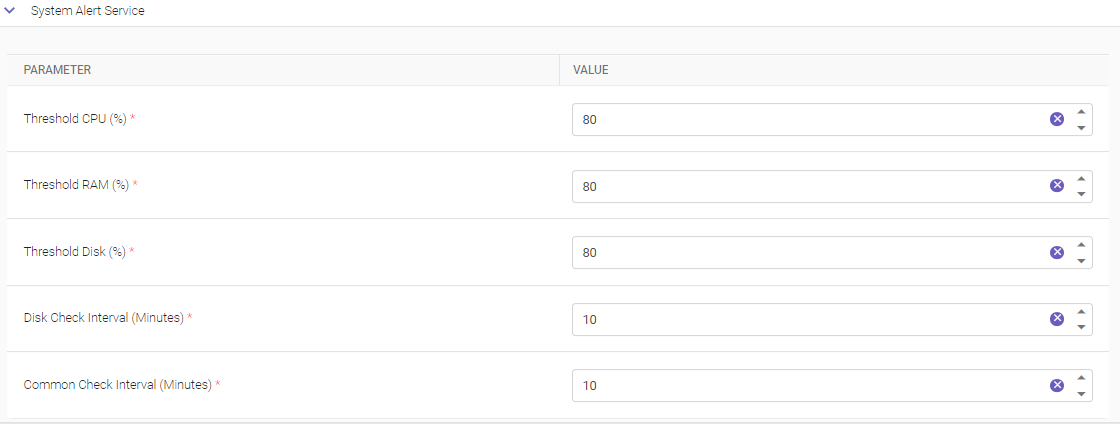
The System Alert Service Settings in TruCap+ empower users to configure and manage real-time system updates related to crucial hardware components such as CPU, RAM, and disk space. This functionality facilitates the proactive monitoring of system performance, allowing users to receive timely notification alerts when predefined thresholds are exceeded.
|
PARAMETER |
DESCRIPTION |
|---|---|
|
Threshold CPU (%)* |
Specify a percentage threshold for CPU utilization. If the actual CPU usage surpasses this threshold, a notification alert is automatically generated and sent to the user. The defined threshold percentage can be entered directly or adjusted using the intuitive icon-based controls. |
|
Threshold RAM (%)* |
Specify a threshold percentage for RAM utilization. When the RAM usage crosses this threshold, a notification alert is triggered. The defined RAM threshold percentage can also be input manually or adjusted using the provided controls. |
|
Threshold Disk (%)* |
Specify a threshold percentage for disk space utilization. If the disk space usage exceeds the defined threshold, a notification alert is generated and sent. The percentage for disk threshold can be typed in directly or adjusted with the available controls. |
|
Disk Check Interval (Minutes)* |
The disk check interval determines how frequently the system evaluates the disk space usage. If the disk usage consistently goes beyond the threshold within the defined time interval, a notification alert is sent. Users can input the disk check interval in minutes or adjust it using the provided controls. |
|
Common Check Interval (Minutes)* |
It sets the frequency at which the system monitors CPU and RAM utilization. If CPU and RAM utilization consistently exceeds their respective thresholds within this interval, notification alerts are issued. Users can enter the common check interval in minutes or use the provided controls for adjustment. |
|
* Mandatory fields |
|
Table properties and synonyms search section
The Table Properties and Synonym Search Setting within TruCap+ empowers users to define specific attributes related to table properties. This configuration ensures accurate and effective data extraction from tables within documents

|
PARAMETER |
DESCRIPTION |
|---|---|
|
Table Properties* |
Attribute-value string that encapsulates the various table property values. These properties dictate how tables are treated and processed during data extraction operations. |
|
* Mandatory field |
|
Translator services
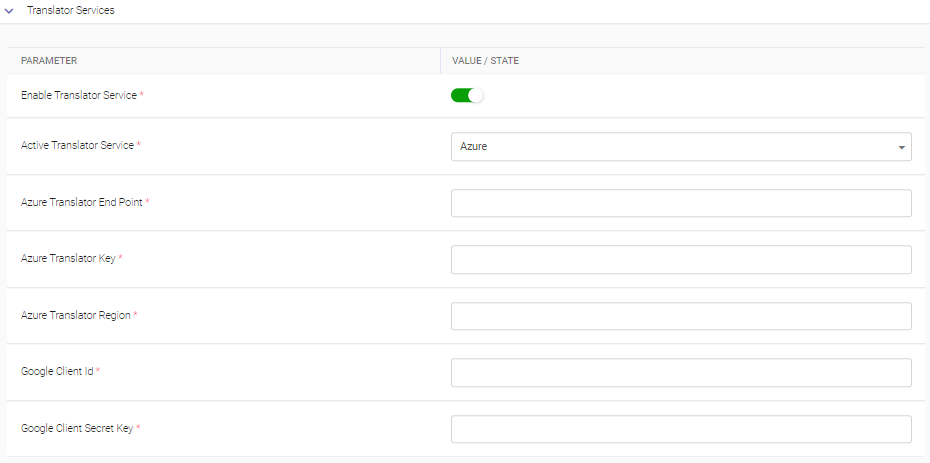
The Translator Services Settings within TruCap+ allow users to configure various parameters that are associated with the utilization of translation services. These settings enable the application to automatically translate text content using external translation services, enhancing multilingual support and text comprehension.
|
PARAMETER |
DESCRIPTION |
|---|---|
|
Enable Translator Service* |
Enabling this toggle switch activates the functionality to utilize translation services within the TruCap+ application. Note Once enabled, an Enable Translator toggle button is available on the Profile & OCR tab at the subtype level, allowing for more granular control. |
|
Active Translator Service* |
S pecifies which external service will be used for text translation. Select the required translator service from the drop-down list. Available options are Azure and Google. |
|
Azure Translator Endpoint* |
If the Azure translator service is chosen as the active translator service, users must provide the endpoint URL of the Azure translator service. This URL is used to connect to the Azure translation service for processing translation requests. |
|
Azure Translator Key* |
Specify the Azure translator key to authenticate and access the translation capabilities when using the Azure translator service. |
|
Azure Translator Region* |
Specify the region to be used for text translation. This region setting helps in determining the data center location for translation requests, if Azure translator service is used. |
|
Google Client Id* |
Enter the Google client id if you have selected Google translation service as an option from Active Translator Service parameter. |
|
Google Client Secret Key* |
Specify the Google client secret key, which is used for secure authentication and communication with the translation service. If you have selected Google as an option from Active Translator Service parameter. |
|
* Mandatory fields |
|
Viewing translated document on MI screen
This section outlines the process of viewing translated documents on the MI (Manual Intervention) screen within the TruCap+ application. When a document from a specific subtype is opened on the MI screen and the Enable Translator toggle button is activated at the subtype level (please refer to the Profile & OCR tab for this configuration), users can access translated content.
A visual cue in the form of a Converted OCR Image  icon is prominently displayed on the right-hand side of the document viewer interface, as illustrated below.
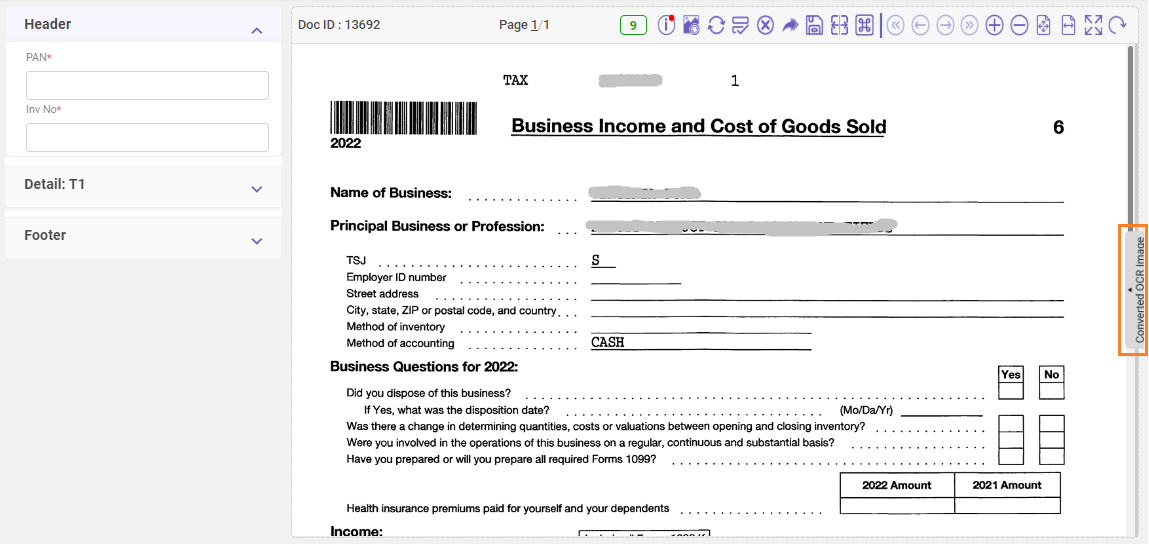
To view the translated version of the document, follow these steps:
-
Click on the
icon. This action initiates the transformation of the document viewer into a dual-view mode. The original document is displayed on one side, while the converted OCR image is presented on the other, as shown in the image below.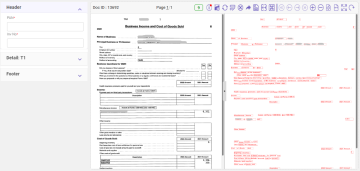
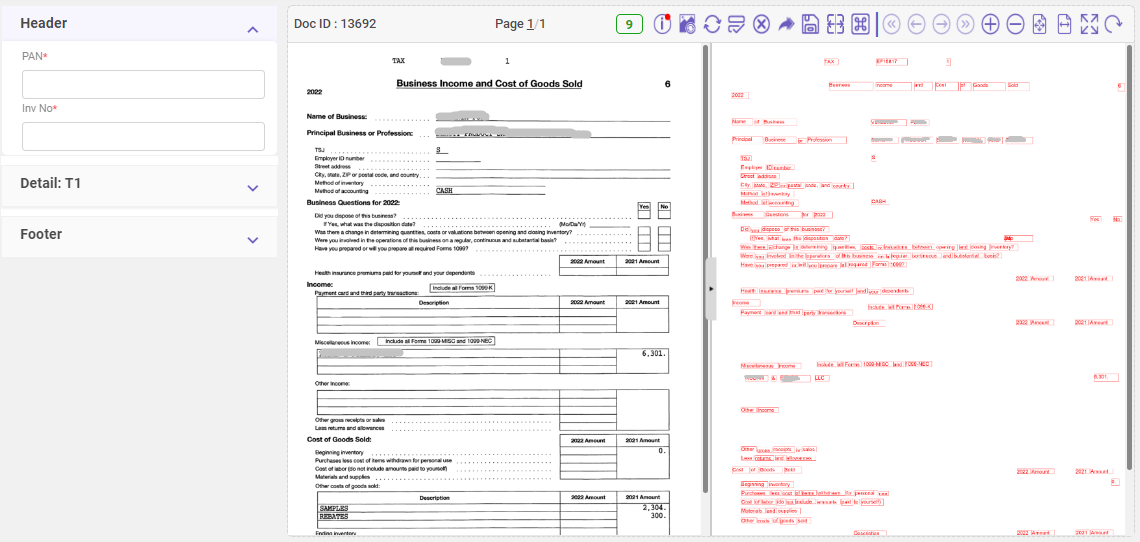
-
To revert to the standard view or close the translated document view, simply click on the
 icon, indicated by a prominent icon within the document viewer interface.
Note:
-
The current implementation of the translation feature in TruCap+ focuses on English as the target language.
-
The Translator Services setting is designed specifically for non-integrated documents, which are commonly referred to as non-heterogeneous documents within the context of the application. For integrated document processing scenarios, please refer to integrated documents processing.
TruCap API
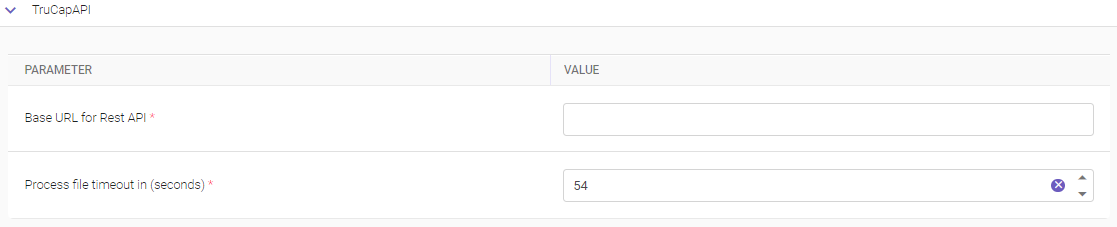
The TruCap API Setting within TruCap+ allows users to define essential parameters for integrating the TruCap+ application with external Rest APIs. This integration empowers the application to communicate and exchange data seamlessly with other systems or services.
|
PARAMETER |
DESCRIPTION |
|---|---|
|
Base URL for Rest API* |
Specify the base URL that serves as the entry point for connecting the TruCap+ application to external Rest APIs. Users should input the complete base URL to ensure accurate communication and data exchange between TruCap+ and the target Rest API. |
|
Process file timeout in (seconds)* |
Specify the time duration, measured in seconds, which determines the time limit for processing a file through the Rest API integration. The setting indicates how long the system should wait for a response from the Rest API when processing a file. |
|
* Mandatory fields |
|