Archive Purge Setup
The Archive Purge Setup module is a powerful tool that allows users to define archiving and purging policies for managing documents within the product. This comprehensive documentation provides step-by-step instructions on how to utilize the Archive Purge Setup module effectively.
Key Features of the Archive Purge Setup Module
Archiving Documents: Within the module, users can define policies to archive documents based on specific criteria. This ensures that relevant documents are stored in the archive, providing a secure and organized repository of historical data.
Purging Documents: The module also allows users to set up purging policies for documents that are no longer required. Purging removes unnecessary documents from the system, optimizing storage space and enhancing system performance.
Accessing Archive Purge Setup
To access the Archive Purge Setup page, follow these steps:
In the main menu, under Application Setup, click Archive Purge Setup. The Archive Purge Setup page opens. Utilize the Search field to filter and find specific records within the displayed grid (Refer searching data).
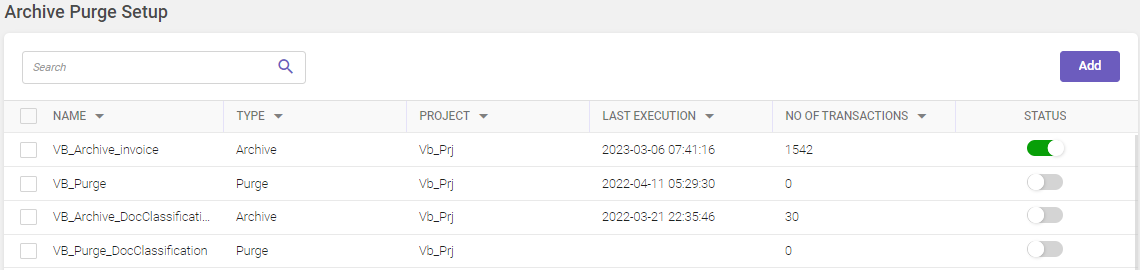
Column header descriptions
|
COLUMN NAME |
DESCRIPTION |
|---|---|
|
Name |
Displays the file name. |
|
Type |
Displays the type of policy (archive/purge). |
|
Project |
Displays the project name. |
|
Last execution |
Displays the archive/purge last execution date and time. |
|
No of Transactions |
Displays the number of transactions performed. |
|
Status |
Displays the active/inactive status of the defined policy. |
Adding Archive Policy
To add archive policy, follow these steps:
-
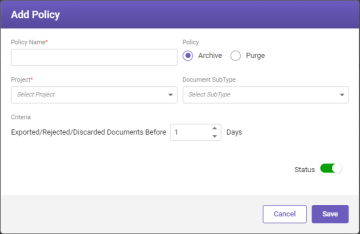
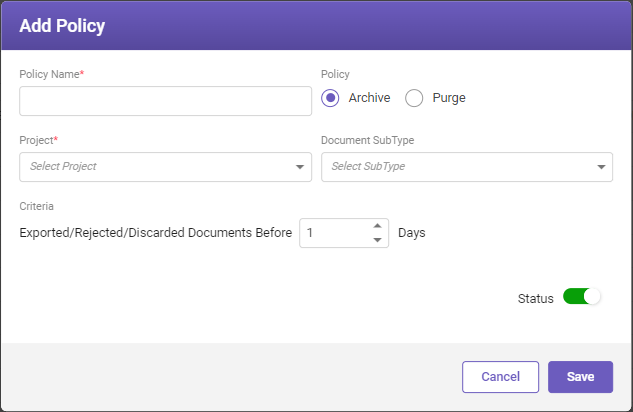
On the top-right corner of the Archive Purge Setup page, click Add. The Add Policy window opens.
-
Fill-in the details based on the following field descriptions.
FIELD
DESCRIPTION
Policy Name*
Defines a policy name that is used as a reference for the archive purge setting.
Policy
Indicate the policy type by selecting the following options:
-
Archive: Click this option to archive the documents.
-
Purge: Click this option to purge the logs.
Project*
Select the project that is to be archived from the drop-down list.
Document Subtype
Select the document subtype that are to be archived from the drop-down list.
Note
If no document subtype is selected, then all active subtypes under the selected Project will be archived or purged.
Criteria
Indicates the exported, rejected, and discarded document transactions data that are to be archived.
You can specify how many days back transactions data from the date of exported, rejected, and discarded documents are to be archived.
Status
Toggle to activate or deactivate the policy.
Mandatory fields*
-
-
Click Save to save the details.
Adding Purge Policy
To add purge policy, perform the following steps:
-
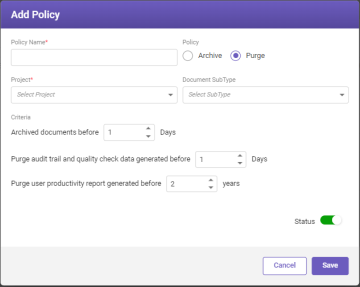
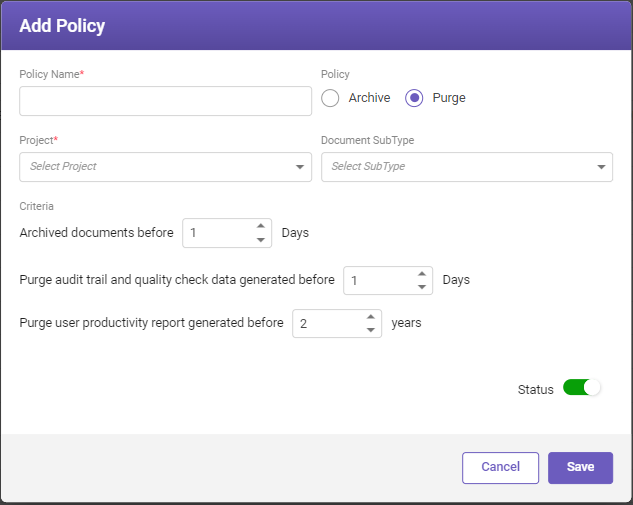
On the top-right corner of the Archive Purge Setup page, click Add. The Add Policy window opens. Choose the Purge option under the Policy label, the Add Policy window with different Criteria is displayed.
-
Fill-in the details based on the following field descriptions.
FIELD
DESCRIPTION
Policy Name*
Defines a policy name that is used as a reference for the archive purge setting.
Policy
Indicate the policy type by selecting the following options:
-
Archive: Click this option to archive the documents.
-
Purge: Click this option to purge the logs.
Project*
Select the project that is to be archived from the drop-down list.
Document Subtype
Select the document subtype that are to be archived from the drop-down list.
Note
If no document subtype is selected, then all active subtypes under the selected Project will be archived or purged.
Criteria
Indicates the archived document transactions, the audit and quality data, and the user productivity report generated that are to be purged.
You can specify how many days back transactions data from the current date of archived documents, audit and quality data, and user productivity report are to be purged.
Status
Toggle to activate or deactivate the policy.
Mandatory fields*
-
-
Click Save to save the details.
Note:
After archive and purge, the documents are moved to the base path location.
Editing policy
To edit a policy, follow these steps:
-
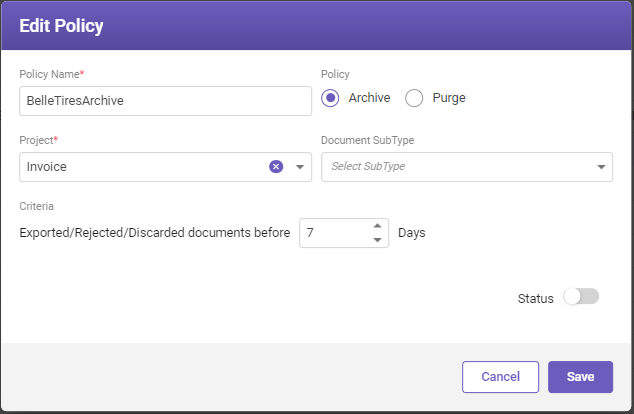
On the Archive Purge Setup page, select the required policy and then click Edit. The Edit Policy window opens.
-
Modify the required details and then click Save.
How does archive and purge policy work?
The Archive and Purge Set up module operates in the following manner:
Policy Creation: Users create policies outlining criteria for archiving and purging documents, including project, subtype, and other relevant attributes.
Archiving Process: Any document meeting the archive criteria are automatically moved to an archive location. Refer Archived documents for more information.
Purging Process: After documents are archived for a defined duration, documents that exceed the retention period are purged from the system.
For the table below, the archive and purge criteria are set as 15 days each.
|
DOCUMENT INGESTION DATE |
DOCUMENT EXPORT/DISCARD/REJECT DATE |
DOCUMENT ARCHIVE DATE |
DOCUMENT PURGE DATE |
|---|---|---|---|
| 01st Jan 2023 | 01st Jan 2023 | 15th Jan 2023 | 30th Jan 2023 |
| 01st Jan 2023 | 10th Jan 2023 | 15th Jan 2023 | 30th Jan 2023 |
| 01st Jan 2023 | 20th Jan 2023 | 21st Jan 2023 | 05th Feb 2023 |