Customer Keys
Customer Key Management is a crucial aspect of our product that ensures data confidentiality by employing public-private key encryption. This comprehensive documentation outlines how users can manage and utilize customer keys to secure user documents and system-generated files effectively.
Key Features of Customer Key Management
Adding Customer Keys: Within the application, users have the flexibility to add multiple customer keys. Each key is a unique combination of public and private cryptographic elements.
Scheduling Key Applicability: Users can schedule the duration during which each customer key will be applicable. This enables seamless key rotation, enhancing data security and mitigating potential vulnerabilities.
Understanding Customer Keys
Public-private key encryption involves the use of a pair of cryptographic keys: the public key, which is used to encrypt data, and the private key, which is used to decrypt the encrypted data. These keys work in tandem to protect sensitive information from unauthorized access.
Note
-
Value of public and private keys get automatically generated using encryption algorithm.
-
The duration of any two public-private key pairs cannot overlap. Hence, only one key pair can be applicable at any given time.
-
Since editing of values is not permitted on this window, for any incorrect entry, such as a wrong date in the From Date or To Date fields, the user has to disable that entry and create a new one with correct values.
Accessing Customer Keys
To access the Customer Keys page, follow these steps:
In the main menu, under Application Setup, click Customer Keys. The Encryption Keys page opens with two accordions In-transit Encryption and API Key.
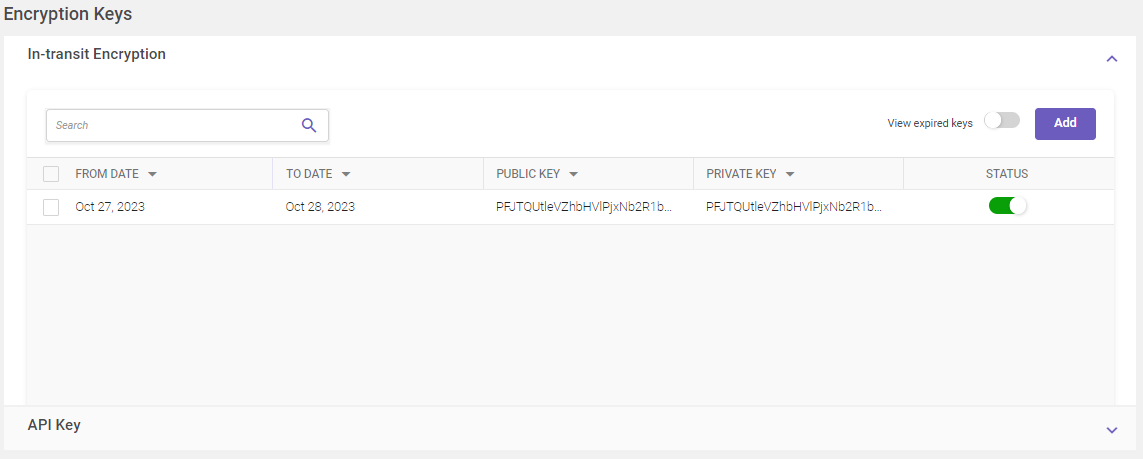
In-transit Encryption
On this page users can create and view customer keys, including expired keys.
Column header descriptions
|
COLUMN NAME |
DESCRIPTION |
|---|---|
|
From Date |
Displays the starting date for the applicable public-private key pair. |
|
To Date |
Displays the ending date for the applicable public-private key pair. |
|
Public Key |
Displays the value of the public encryption key. |
|
Private Key |
Displays the value of the private encryption key. |
|
Status |
Displays the active/inactive status of the public private key pair. |
Adding customer keys
To add customer keys, follow these steps:
-
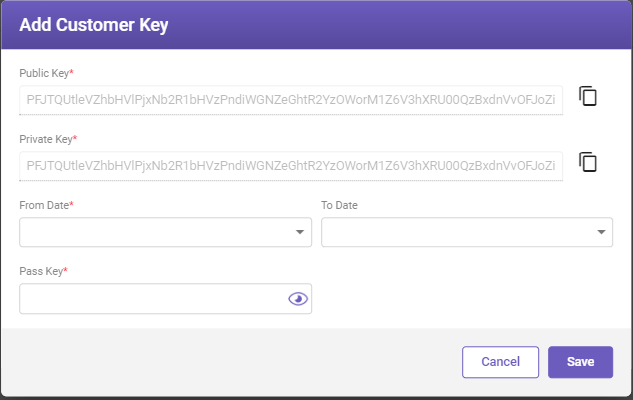
In the top-right corner of the In-transit Encryption page, click Add button. The Add Customer Key window opens.
-
Fill-in the details based on the following field descriptions.
|
FIELD |
DESCRIPTION |
|---|---|
|
Public Key* |
Displays the public encryption key applied. |
|
Private Key* |
Displays the private encryption key applied. |
|
From Date* |
Select the start date for the applied private key from the drop-down list. |
|
To Date |
Select the end date for the applied private key from the drop-down list. This date signifies the key's expiration date. Note If the date is not specified, the key remains active indefinitely. |
|
Pass Key* |
Enter a 16-character alphanumeric password for additional security. |
|
* Mandatory fields |
|
-
Click Save to save the details.
Viewing expired keys
In the top-right corner of the In-transit Encryption page, enable the View expired keys toggle button to view the expired keys (keys with disabled status) will be visible.
API Key
In the main menu, under Application Setup, click Customer Keys. The Encryption Keys page opens with two accordions In-transit Encryption and API Key. Click API Key. The API Key page opens.
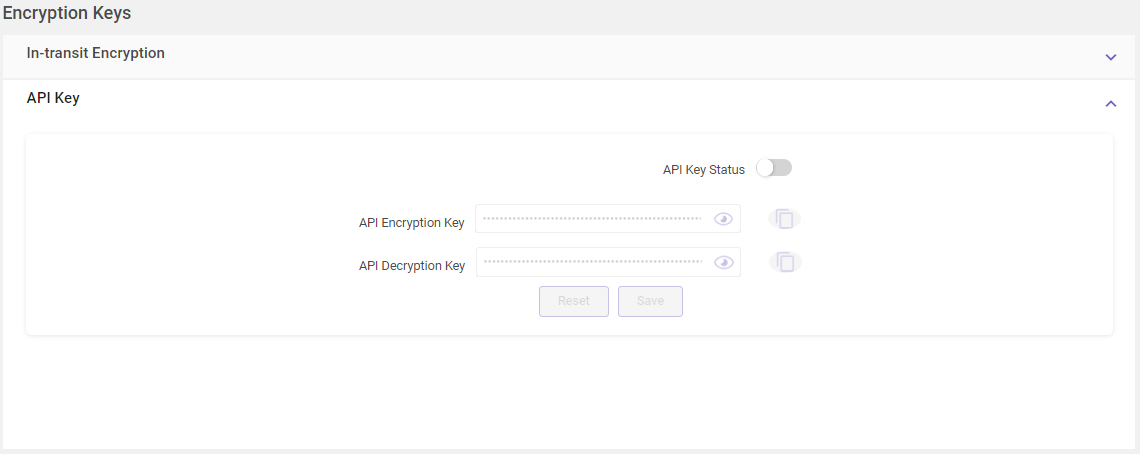
On the API Key page, following activities can be performed:
-
API Key Status: By default, the API Key Status toggle button is disabled. If the user enables the toggle button then the API Encryption Key and API Decryption Key fields will be visible.
Note
-
Even if API Key Status toggle is disabled, it will not restrict the user from uploading the document.
-
User Id and password login for the API would be possible for both API encryption enabled or disabled.
-
Error response will be in decrypted format.
-
-
Viewing API keys: Click
 icon to view the set API Encryption and Decryption keys. On page load, they will not be visible.
-
Copying API keys: Click
 icon to copy the API Encryption or Decryption keys to the clipboard.
-
Reset API keys: Click
 to generate a new pair of API Encryption and Decryption keys. Alternatively a user can create it own API Encryption and Decryption keys.