License Information
The License Information module is a crucial component of our application that empowers users to manage license files and access license reports. This documentation provides a comprehensive guide on how to utilize the License Information module effectively.
Uploading a license file
To begin using the License Information module, users can upload their license file. This file contains important licensing data necessary to activate and validate the application's usage rights. The process of uploading a license file ensures that the application operates within the authorized license terms, granting users access to the full range of functionalities and features.
Viewing a license report
The License Information module also allows users to generate and view license reports. These reports provide valuable insights into the current licensing status, such as the license expiration date, the number of active licenses, and any associated restrictions or permissions. The license report offers an at-a-glance overview of the application's licensing details, aiding in efficient license management and compliance.
Note:
To access the admin user interface, type "\admin" after the base url. Enter the admin related credentials to access the admin user interface.
Accessing License Information
To access the License Information page, follow these steps:
-
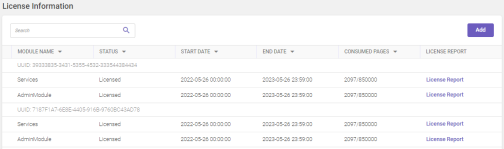
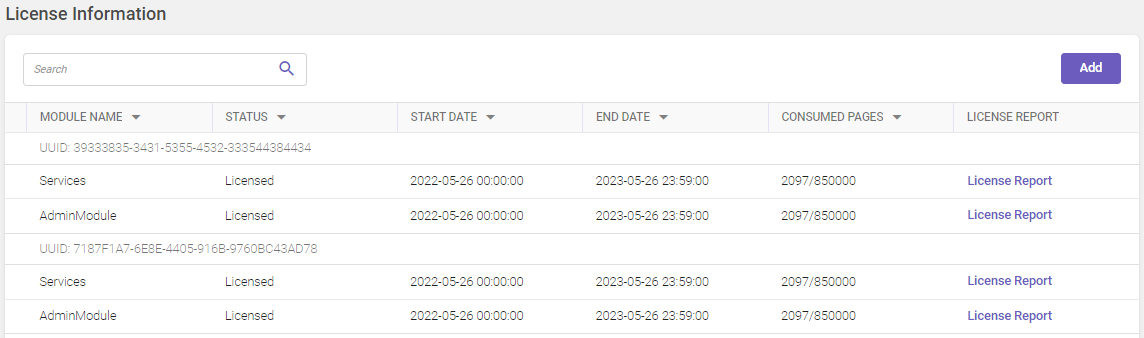
In the main menu, under Application Setup, click License Information. The License Information page opens.
Column header descriptions
COLUMN NAME
DESCRIPTION
Module Name
Displays the name of the associated module.
Status
Displays the current status of the license.
Start Date
Displays the license commencement date.
End Date
Displays the license expiry date.
Consumed Pages
Displays the number of pages consumed.
License Report
Offers access to the detailed license report for the specified module.
Adding license file
Note:
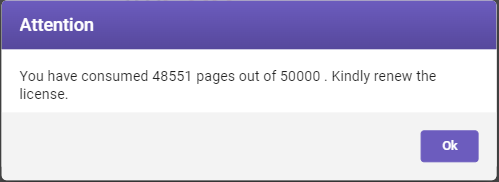
If the uploaded license file lacks precise dates for the admin and service modules, an explanatory message is displayed (see the below image).

To add the license file, follow these steps:
-
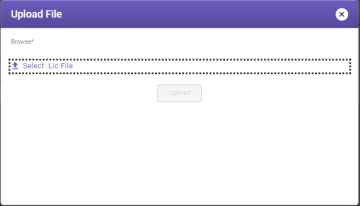
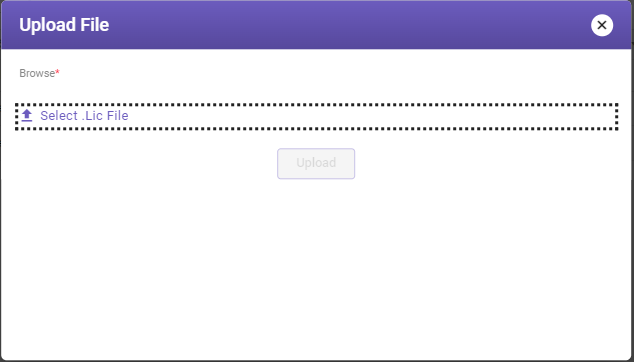
In the top-right corner of the License Information page, click Add. The Upload File window opens.
-
Click Select File and browse to select the required DLL file and then click Upload.
License report
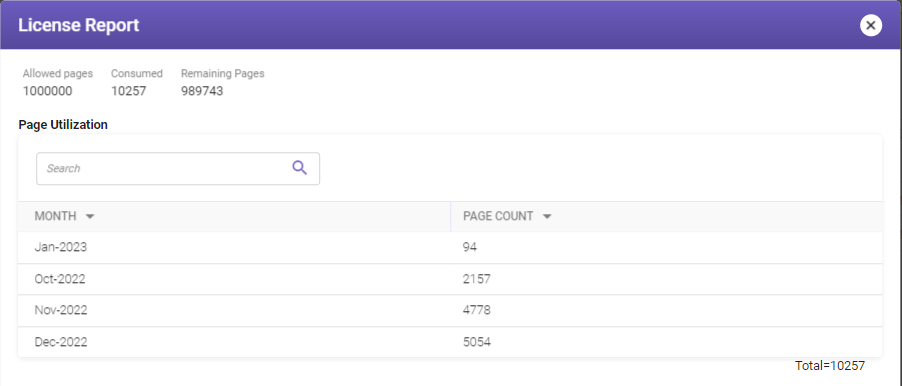
The license report furnishes comprehensive information about consumed and remaining pages, along with monthly utilization.
On the License Information page, click the License Report link for the relevant module. The License Report screen opens.
-
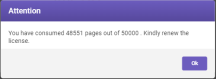
A notification message prompts license renewal when the license approaches expiry. Depending on factors like remaining days and page consumption, this notification may be sent to the TruCap+ registered email address.
-
When only 10% of pages remain or when the license is set to expire in 10 days, the system sends a timely notification regarding license depletion.